How to Get Started With Claude Code: A Beginner’s Guide for Business Leaders
{
  "@context": "https://schema.org",
  "@graph": [
    {
      "@type": "BlogPosting",
      "headline": "How to Get Started With Claude Code: A Beginner’s Guide for Business Leaders",
      "url": "https://mattkundodigitalmarketing.com/blog/how-to-get-started-with-claude-code/",
      "mainEntityOfPage": {
        "@type": "WebPage",
        "@id": "https://mattkundodigitalmarketing.com/blog/how-to-get-started-with-claude-code/"
      },
      "author": {
        "@type": "Person",
        "name": "Matt Kundo",
        "jobTitle": "Founder and Growth Marketing Manager",
        "worksFor": {
          "@type": "Organization",
          "name": "Matt Kundo Digital Marketing"
        },
        "knowsAbout": [
          "Search engine optimization",
          "Generative engine optimization",
          "AI search visibility",
          "Digital marketing"
        ]
      },
      "description": "To get started with Claude Code, you need a paid plan, one install command and a practice folder. Here are the Mac and Windows steps and a safe first session.",
      "datePublished": "2026-11-16",
      "dateModified": "2026-11-16",
      "image": "https://mattkundodigitalmarketing.com/assets/blog/how-to-get-started-with-claude-code/hero.jpg"
    },
    {
      "@type": "FAQPage",
      "mainEntity": [
        {
          "@type": "Question",
          "name": "Do I need to know how to code to use Claude Code?",
          "acceptedAnswer": {
            "@type": "Answer",
            "text": "No. You type plain-English requests, and Claude Code writes and runs the code. What you need is the judgment to read a permission prompt before you approve it and to check the result."
          }
        },
        {
          "@type": "Question",
          "name": "Is Claude Code free?",
          "acceptedAnswer": {
            "@type": "Answer",
            "text": "No. The free Claude plan doesn't include Claude Code. The lowest-cost option is Pro, at $20 a month billed monthly or $17 a month on an annual plan, as of November 16, 2026."
          }
        },
        {
          "@type": "Question",
          "name": "Is the Claude desktop app easier than the terminal?",
          "acceptedAnswer": {
            "@type": "Answer",
            "text": "For some people, yes. The desktop app includes Claude Code in its Code tab with a visual interface, and it needs the same paid plan. The terminal version is the one most of Anthropic's documentation walks through."
          }
        },
        {
          "@type": "Question",
          "name": "Will Claude Code change my files without asking?",
          "acceptedAnswer": {
            "@type": "Answer",
            "text": "It depends on the permission mode. Newer versions start terminal sessions in auto mode, where a classifier approves the actions it judges safe. In Manual mode, Claude Code asks before every edit and every command beyond simple look-only ones. Start with claude --permission-mode manual until you're comfortable."
          }
        },
        {
          "@type": "Question",
          "name": "Can I use Claude Code with company data?",
          "acceptedAnswer": {
            "@type": "Answer",
            "text": "Check with your company's AI policy first. Pro, Max and Ultra use Anthropic's Consumer Terms, and model training on those plans is a setting you can opt out of. As noted on Anthropic's data usage page, Team and Enterprise plans do not train on your content by default. Until your company gives the green light, be sure to work with copies of non-sensitive files or made-up data."
          }
        },
        {
          "@type": "Question",
          "name": "Do I need admin rights on my computer?",
          "acceptedAnswer": {
            "@type": "Answer",
            "text": "No, for the base installer. Anthropic's Windows install instructions note you don't have to run the installer as Administrator, and on Mac it installs in your user directory. Some corporate-issued laptops still restrict installations, so talk to your IT department if the installer doesn't work."
          }
        }
      ]
    },
    {
      "@type": "BreadcrumbList",
      "itemListElement": [
        {
          "@type": "ListItem",
          "position": 1,
          "name": "Home",
          "item": "https://mattkundodigitalmarketing.com/"
        },
        {
          "@type": "ListItem",
          "position": 2,
          "name": "Blog",
          "item": "https://mattkundodigitalmarketing.com/blog/"
        },
        {
          "@type": "ListItem",
          "position": 3,
          "name": "Getting Started With Claude Code",
          "item": "https://mattkundodigitalmarketing.com/blog/how-to-get-started-with-claude-code/"
        }
      ]
    }
  ]
} Want a live walkthrough?
Many people have asked me how to get started with Claude Code. If you'd like me to do a live, webinar-style walkthrough, put your name and email address down. If I get enough sign-ups, I'll host a small-group live tutorial.
To get started with Claude Code, you need a paid Claude plan such as Pro ($20 a month), a terminal window and one install command. Install it, start it from an empty practice folder, sign in through your browser, and run your first session in Manual mode with made-up data before you point it at real work. If you want the bigger picture on where agent tools like this fit in marketing, my guide to AI in marketing automation covers that.
I get asked about this a lot, usually by people who already use the Claude app and want the next step. My wife is a good example. She uses Claude regularly and is interested in getting started with Claude Code. If that sounds like you, and the terminal is the part that makes you hesitate, this is the walkthrough I'd give you.
One note before you start. I ran the Mac steps on a Mac on November 16, 2026, with Claude Code 2.1.325, and the screenshots and video in this guide come from that run. The Windows steps follow Anthropic's official Claude Code documentation as I checked it the same day, so where Anthropic lists a fallback, I've included it.
Key takeaways
- Claude Code needs a Pro, Max, Ultra, Team, Enterprise or Console account. The free Claude plan doesn't include it, per Anthropic's setup page.
- It runs on macOS 13.0 or later and Windows 10 version 1809 or later, and it installs with one pasted command.
- Newer versions start terminal sessions in auto mode, where a safety classifier approves actions instead of you. For your first session, start in Manual mode so you see and approve every change.
- Use a new practice folder and fake data first. Keep passwords, API keys and customer data out until your company has signed off.
- Press Esc to stop Claude mid-task, type /rewind to undo its file edits, and type /exit to leave.
What is Claude Code, and how is it different from the Claude app?
Claude Code is Anthropic's agentic coding tool. Anthropic's overview describes it as a tool that "reads your codebase, edits files, runs commands, and integrates with your development tools." The Claude app talks with you. Claude Code works on files on your own computer.
That's the whole difference, and it's a big one. In the app, you paste a spreadsheet in, get an answer and copy it back out. In Claude Code, you point it at a folder and say what you want. It can read the files there, create new ones and run commands to get the job done, asking for your approval along the way.
You don't need to be a developer. Anthropic's terminal guide for new users puts it plainly: "You don't need to know how to code. Describe what you want in plain English, and Claude writes the code for you." What you do need is the habit of reading what Claude Code is about to do before you say yes. I'll get to that.
What do the terminal words mean in plain English?
The terminal is the part that feels foreign, so here are the five terms you'll see in this guide.
- Terminal: A window where you type instructions instead of clicking. On a Mac it's the Terminal app. On Windows it's PowerShell.
- Command: One line you type into the terminal and run by pressing Enter, such as
claude --version. In this guide, anything I tell you to type "in your terminal" is a command. - Prompt: A plain-English request you type inside Claude Code once it's running, the same way you'd type in the Claude app. Anything I tell you to type "inside Claude Code" is a prompt.
- Working folder: The folder you started Claude Code in. In Manual mode, Claude Code asks before its file tools read or write anything outside that folder.
- Permission prompt: The question Claude Code asks before it creates or edits a file or runs a command. You answer yes or no.
One more thing that trips people up: you can't click around inside the terminal. You use the keyboard, and the arrow keys move you between choices.
What do you need before you install Claude Code?
You need three things: a paid Claude plan, a supported computer and an internet connection. Here's the plan picture from Anthropic's pricing page, as of November 16, 2026.
| Plan | Price | Includes Claude Code? |
|---|---|---|
| Free | $0 | No |
| Pro | $20 a month billed monthly, or $17 a month billed annually ($200 up front) | Yes |
| Max | $100 a month | Yes, with 5x Pro usage |
| Ultra | $200 a month | Yes, with 10x Pro weekly usage |
| Team, standard seat | $25 per seat a month billed monthly, or $20 billed annually | Yes |
Every plan has usage limits, and on Pro and Max they're measured every 5 hours and every week. Pro is enough to learn on. If you'd rather pay as you go, a Claude Console account runs on pre-paid API credits instead. For a sense of scale, Anthropic's cost guide says enterprise deployments average about $13 per developer per active day, with 90% of users under $30. That's for developers working in it all day.
For your computer, Anthropic lists macOS 13.0 or later, Windows 10 version 1809 or later (or Windows Server 2019), at least 4 GB of RAM and an internet connection. Claude Code is only offered in Anthropic's supported countries.
A note for business use. Pro, Max and Ultra are covered by Anthropic's Consumer Terms, and model training on those plans is a setting you can opt out of. Team and Enterprise plans don't train on your content by default. If you plan to use Claude Code with company files, check your company's AI policy first and ask whether there's a Team or Enterprise seat for you.
Prefer to skip the terminal entirely? The Claude desktop app includes Claude Code in its Code tab, so you don't need to install anything from the command line. It still needs a paid plan. I'd still learn the terminal path, because it's the one most of Anthropic's documentation walks through, and the commands are short.
How do you install Claude Code on a Mac?
On a Mac, you open Terminal, paste one install command and press Enter. Here are the steps.
- Press Cmd + Space to open Spotlight, type Terminal and press Enter. A window opens with a blinking cursor.
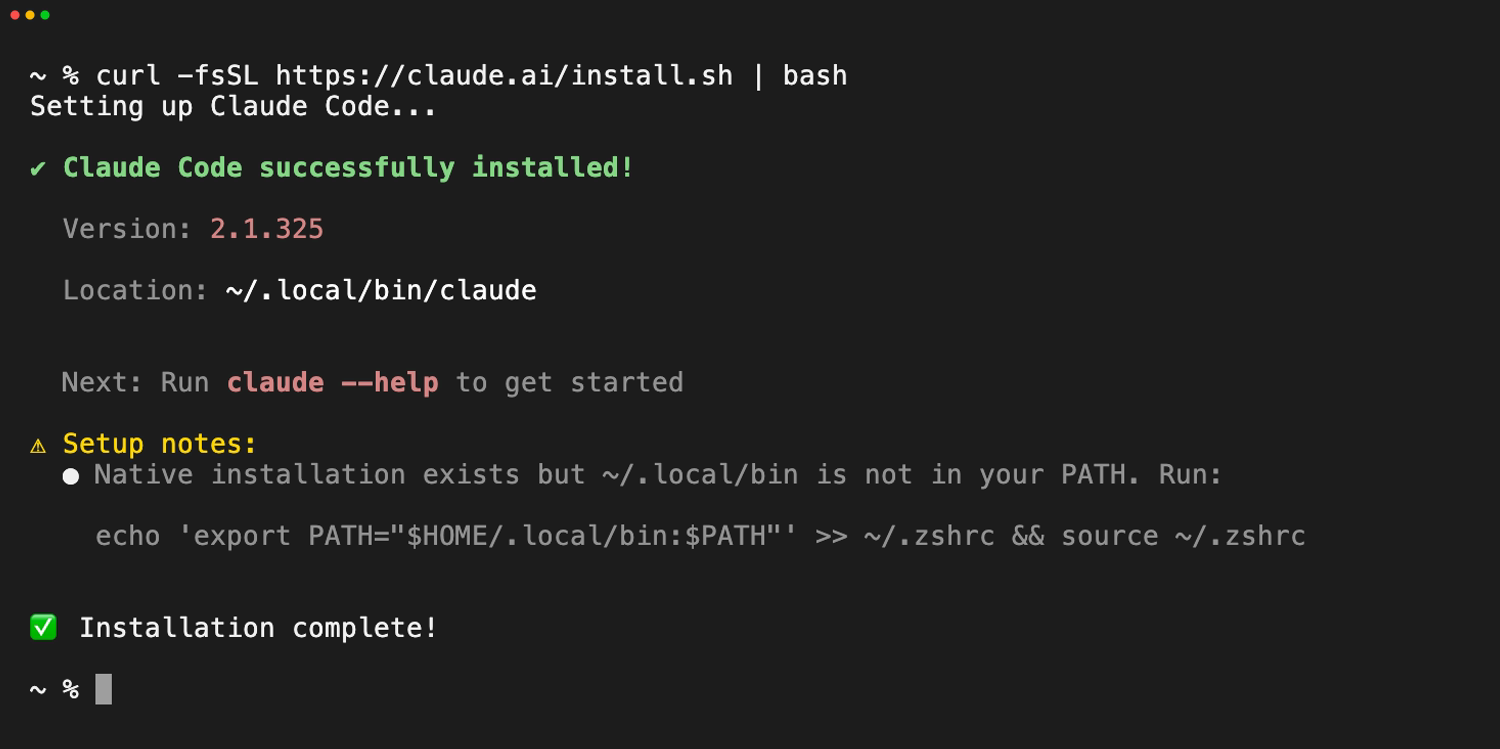
- Copy this line, paste it into Terminal with Cmd + V and press Enter.
curl -fsSL https://claude.ai/install.sh | bash - Wait. The installer shows no progress while it downloads, so leave the window alone. When it finishes, you'll see a message that Claude Code was successfully installed.
- Close Terminal, open a new Terminal window and type this to check the install.
claude --version
A working install prints a version number followed by "(Claude Code)".
If you see command not found: claude, the install worked but your Mac can't find the program yet. The installer prints the exact fix under "Setup notes" at the end of its output. For the default Mac shell (zsh), Anthropic's fix is these two lines, run one at a time, followed by a new Terminal window.
echo 'export PATH="$HOME/.local/bin:$PATH"' >> ~/.zshrc
source ~/.zshrc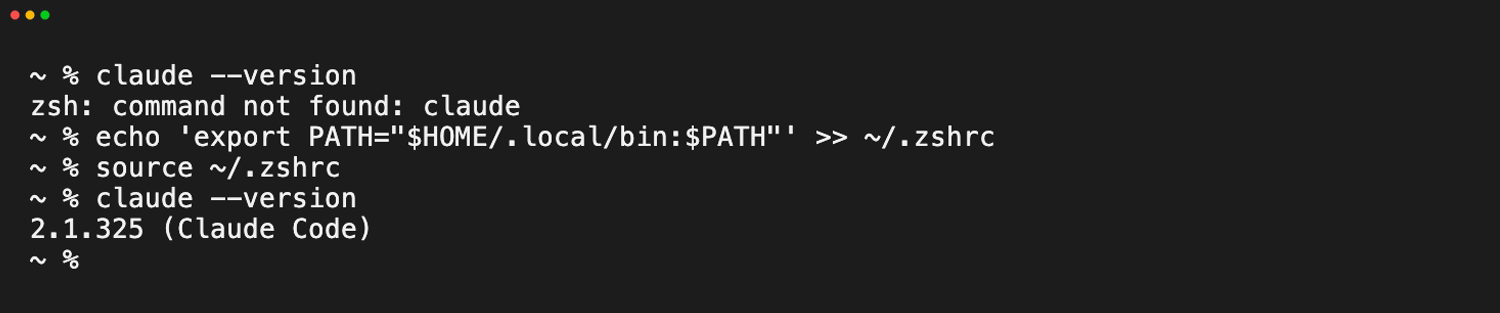
If you already use Homebrew, brew install --cask claude-code works too. Just know that Homebrew installs don't update themselves, while the main installer updates in the background.
How do you install Claude Code on Windows?
On Windows, you open PowerShell, paste one install command and press Enter. You don't need to run it as Administrator.
- Optional: install Git for Windows first and accept the defaults on every screen. It gives Claude Code a Bash shell for running commands. Without it, Claude Code uses PowerShell instead, and you won't need to learn Git either way.
- Press Win + X and choose Windows PowerShell or Terminal. Check that each line starts with
PS C:\. That "PS" tells you you're in PowerShell, not the older Command Prompt (CMD). - Copy this line, paste it with Ctrl + V and press Enter.
irm https://claude.ai/install.ps1 | iex - Wait for the success message. Like the Mac installer, it shows no progress while it downloads.
- Close PowerShell, open a new PowerShell window and type this to check the install.
claude --version
If you ended up in CMD instead, Anthropic gives a separate command for it.
curl -fsSL https://claude.ai/install.cmd -o install.cmd && install.cmd && del install.cmdIf PowerShell says 'claude' is not recognized, the program installed but Windows can't find it yet. Run the fix the installer printed under "Setup notes", or follow the PATH steps in Anthropic's installation troubleshooting guide, then open a new window. Developers sometimes run Claude Code inside WSL (Windows Subsystem for Linux) instead. It's supported, but it's not where I'd start.
What is a safe first session to try?
A safe first session is a small task in an empty folder, using fake data, with Manual mode on so you approve every change. I call this the five-guardrail first session, and I'd use it for anyone's first hour in Claude Code.
- New folder: Start in a practice folder with nothing else in it, never your home folder or Documents.
- Fake data: Let Claude Code make up the sample data, so nothing real is at risk.
- Manual mode: Start the session so Claude asks before every edit and every command that changes something.
- Read before yes: Check the file name, the folder and any command before you approve it.
- Know your exits: Practice saying no, stopping and leaving before you need to.

Here's the exercise, step by step. The data is invented, so your numbers won't match anyone else's, but the shape of the result will.
Step 1: Make a practice folder

On a Mac, type these two lines in your terminal.
mkdir ~/claude-practice
cd ~/claude-practice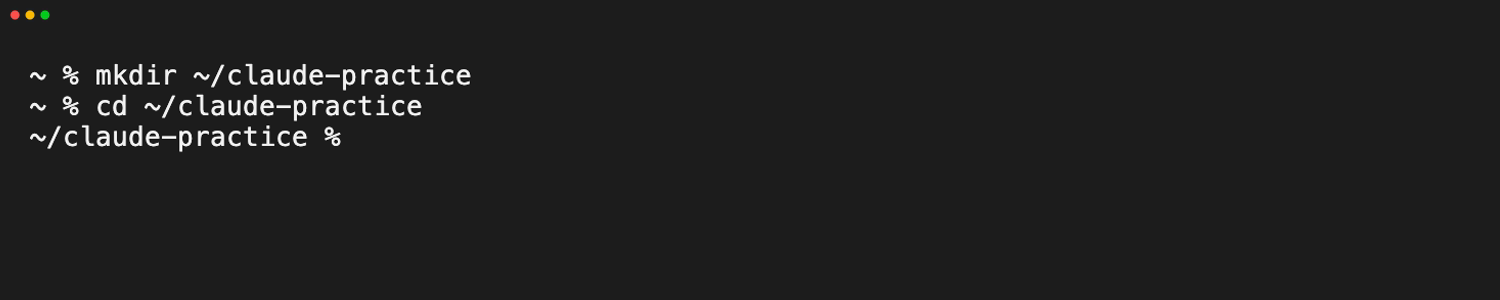
On Windows, type these two lines in PowerShell.
mkdir $HOME\claude-practice
cd $HOME\claude-practice
mkdir creates the folder and cd moves you into it, so Claude Code starts there. Anthropic's security docs explain why this matters: when you start Claude Code in your home folder, your trust choice isn't saved and the prompt comes back every launch. Starting in a dedicated folder avoids that, and it keeps your personal files out of the session.
Step 2: Start Claude Code in Manual mode and sign in
Type this in your terminal.
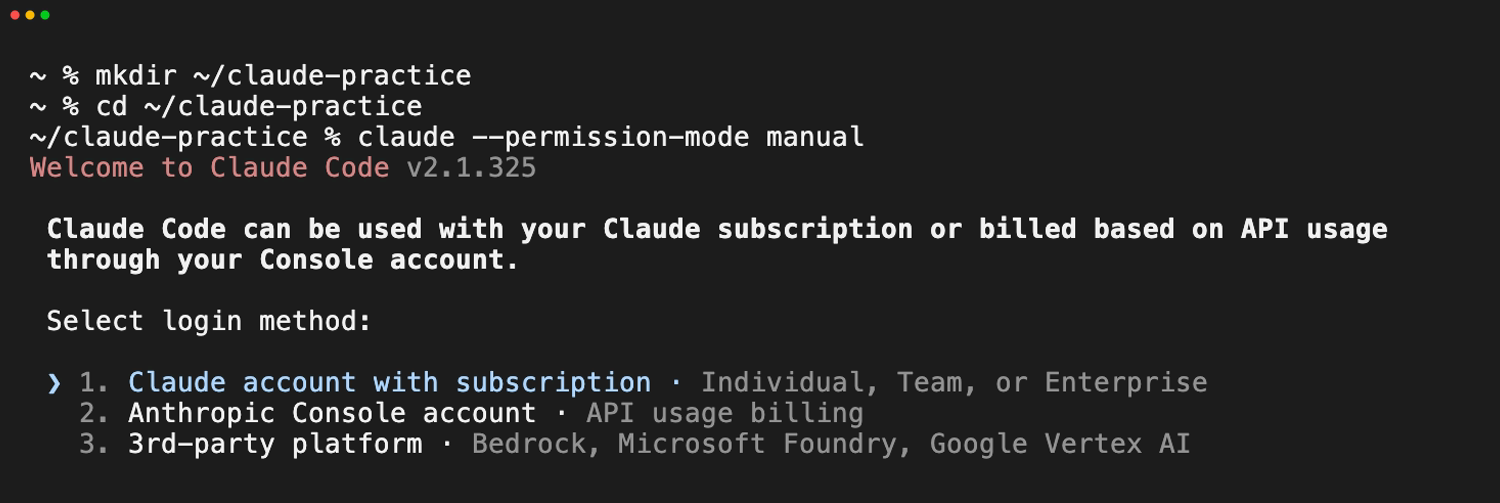
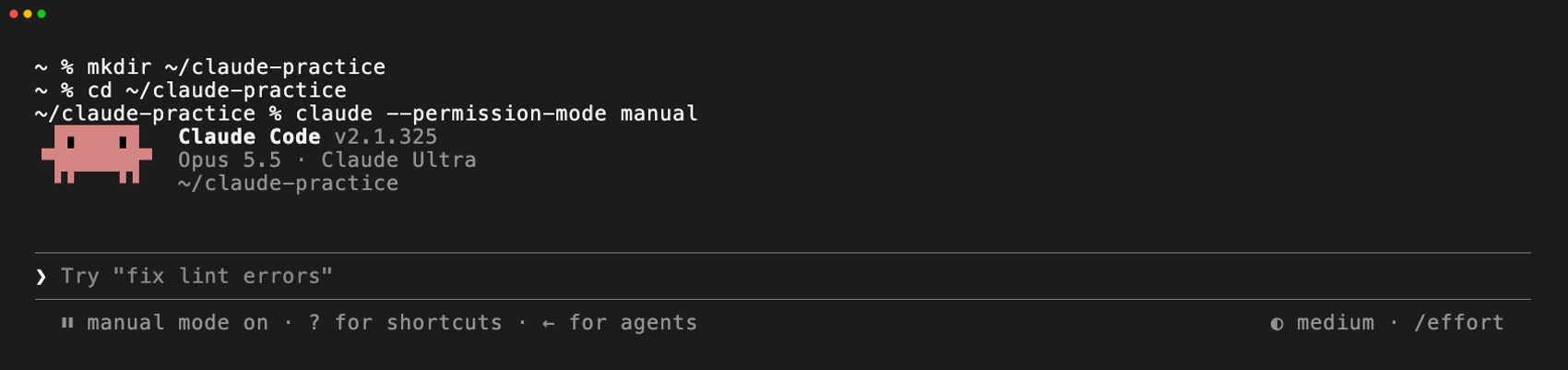
claude --permission-mode manualHere's why I'd add that flag. Since version 2.1.283, Claude Code starts terminal sessions in auto mode by default, according to Anthropic's permission modes page. In auto mode, a second model reviews actions instead of you and blocks the ones it judges unsafe, so you might never see a permission prompt. That's handy later. For learning, Manual mode is better. Claude Code can read files and run a small set of look-only commands on its own, and it asks you before it edits a file or runs anything else.
The first time you run it, Claude Code walks you through a short setup. It starts by asking which text style reads best in your window. Dark mode is selected by default, which suits a dark Terminal. If your window is white, press the Down arrow to Light mode, then Enter.
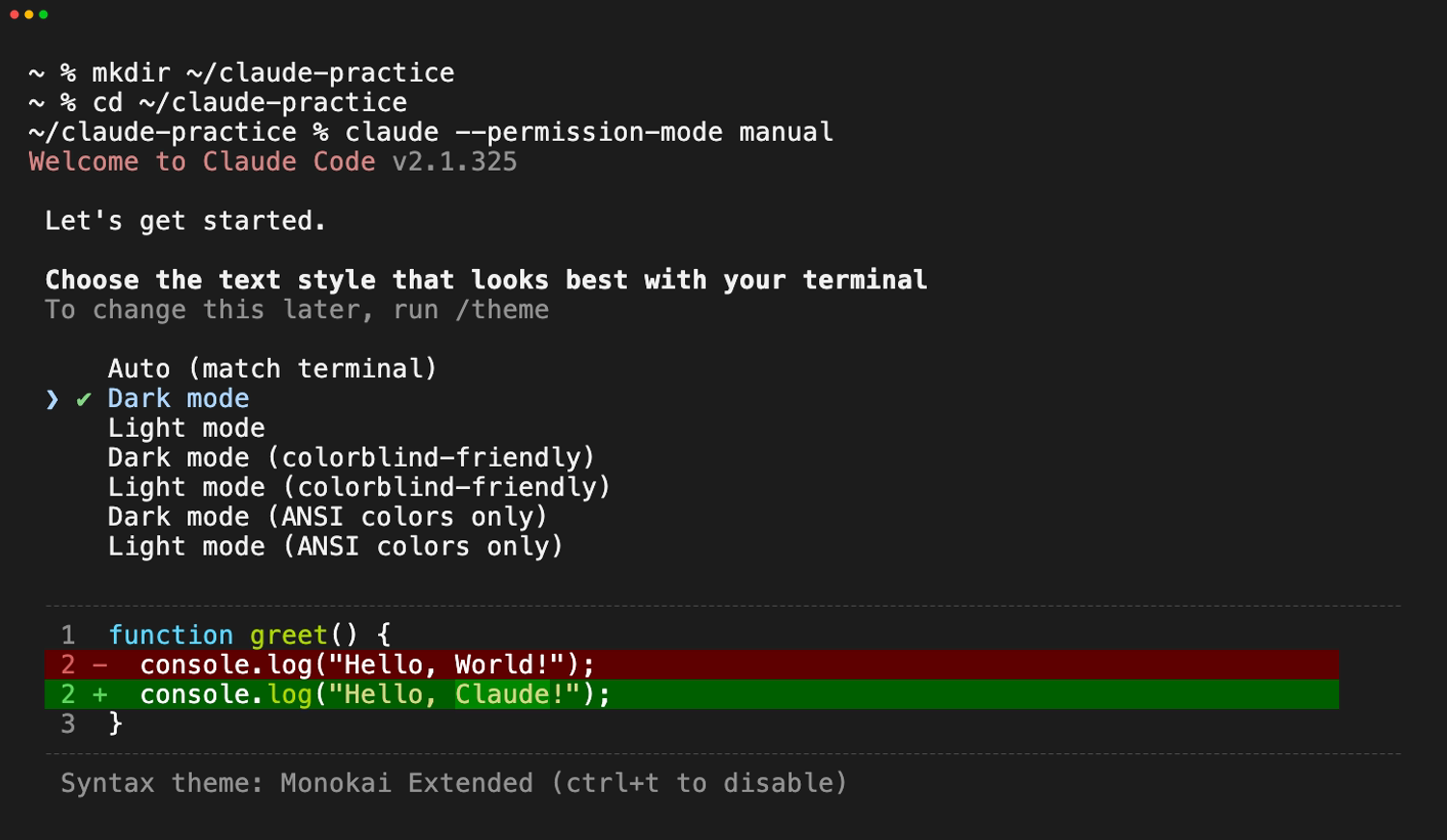
Next it asks how you want to log in. Choose 1, Claude account with subscription, and a browser window opens. Sign in with the Claude account that has your paid plan and click Authorize. Back in the terminal, you'll see Login successful. Press Enter. Your credentials are stored after that, so you won't sign in again.
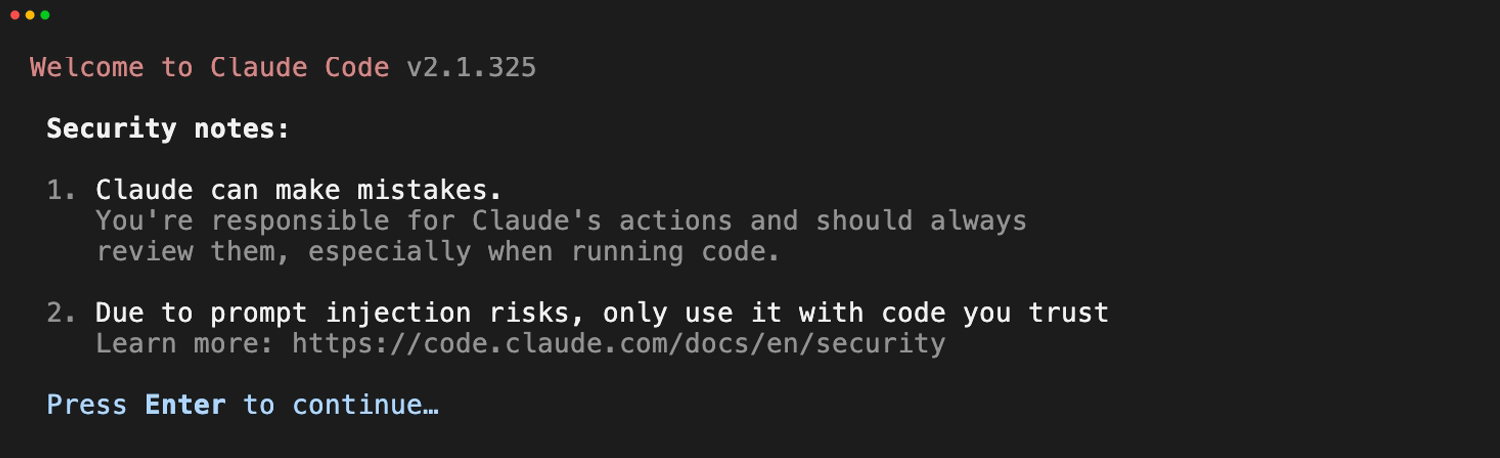
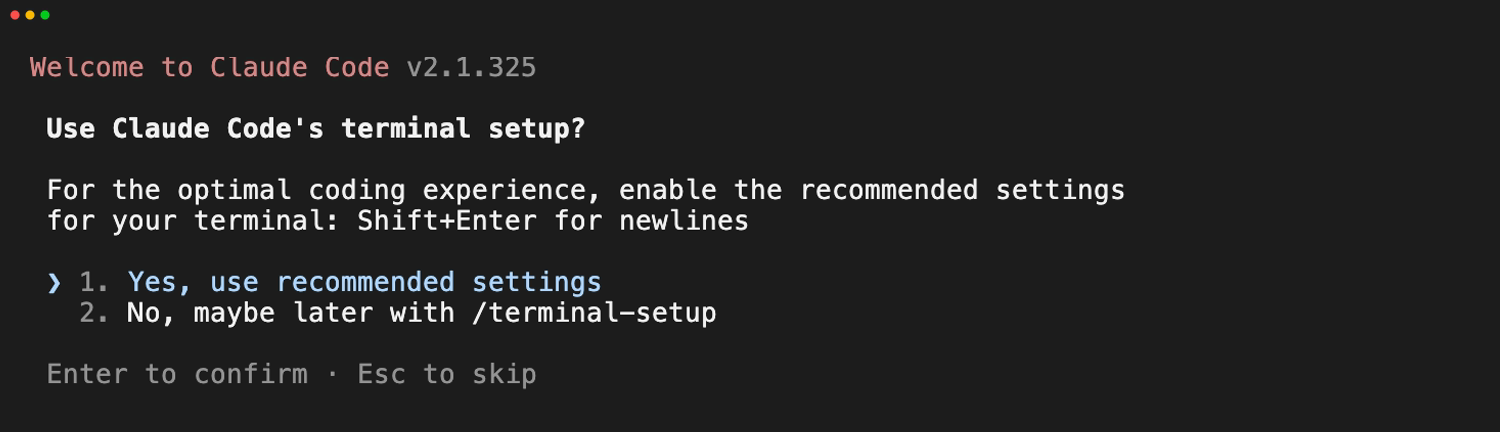
Two short screens follow. The security notes remind you that Claude can make mistakes and that you should only use it with code you trust. Press Enter. Then it offers its terminal setup, which lets Shift + Enter start a new line in a prompt. Either answer is fine for this exercise.
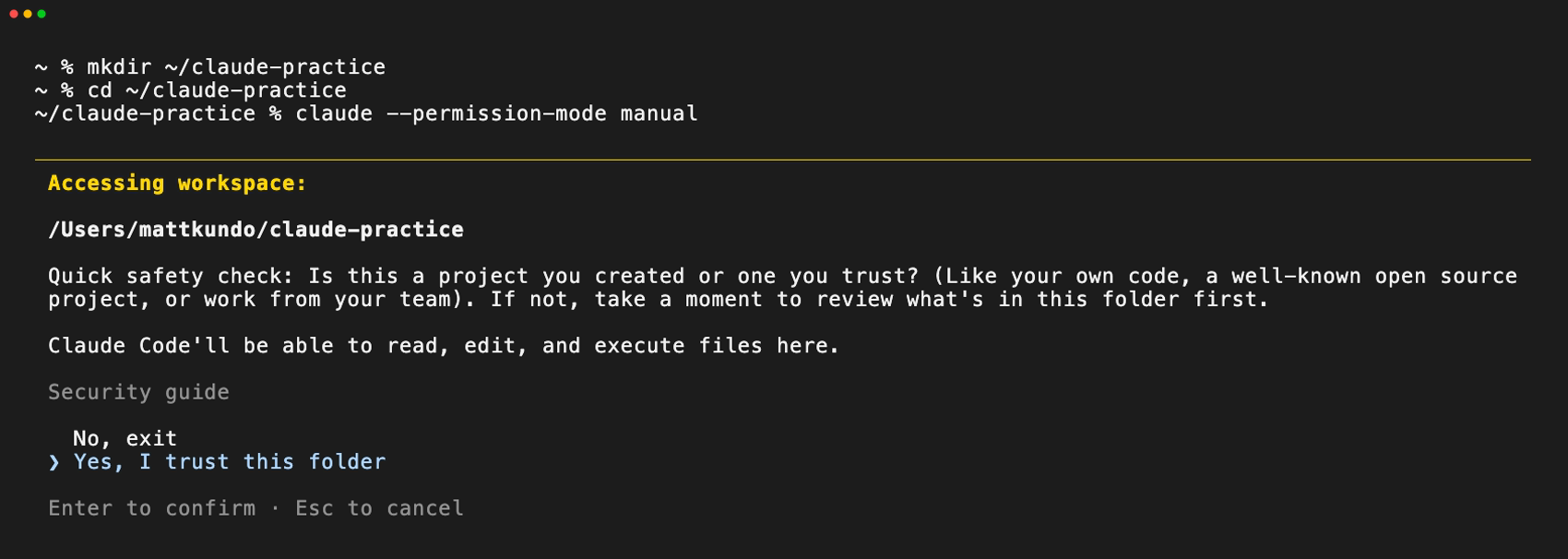
Because this is a new folder, Claude Code also asks whether you trust it. Watch the default here. The highlighted answer is No, exit, so pressing Enter right away closes Claude Code. Press the Down arrow to Yes, I trust this folder, then Enter. It's your empty practice folder, so yes is the right call.
Then you'll see the Claude Code prompt, with the version, the model and your working folder shown above it. The status line at the bottom should say manual mode on. If it doesn't, press Shift + Tab until it does. You may also get a one-time offer to try a new full-screen display. Not now is fine.
Step 3: Ask Claude Code to make sample data
Type this prompt inside Claude Code and press Enter.
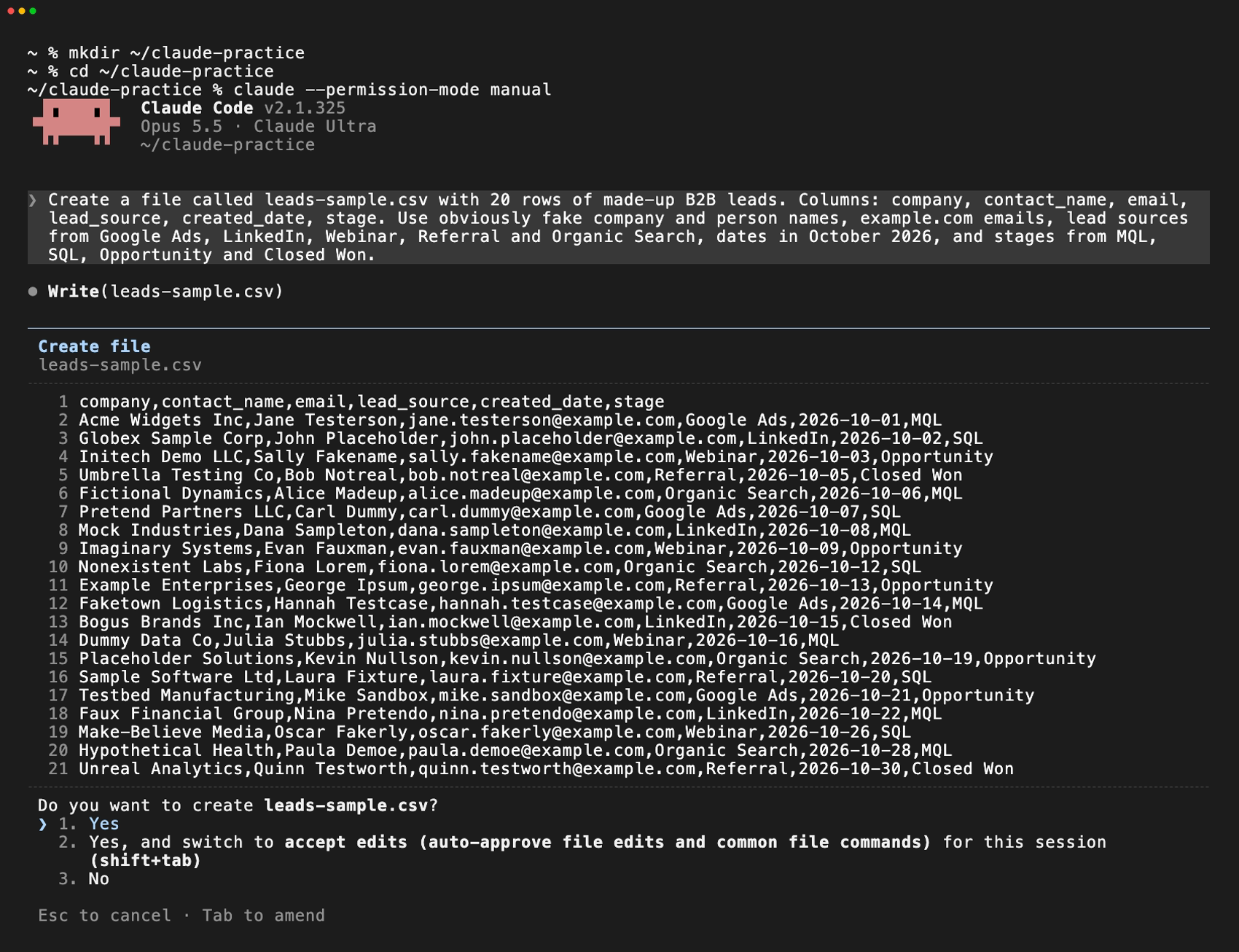
Create a file called leads-sample.csv with 20 rows of made-up B2B leads. Columns: company, contact_name, email, lead_source, created_date, stage. Use obviously fake company and person names, example.com emails, lead sources from Google Ads, LinkedIn, Webinar, Referral and Organic Search, dates in October 2026, and stages from MQL, SQL, Opportunity and Closed Won.Claude Code will say what it plans to do, then show a permission prompt to create leads-sample.csv. Before you approve, check two things: the file is called leads-sample.csv, and it's going into your claude-practice folder. Then choose Yes, which approves this one action. Skip the option that allows it for the rest of the session for now.
Step 4: Ask for a summary
Type this prompt inside Claude Code.
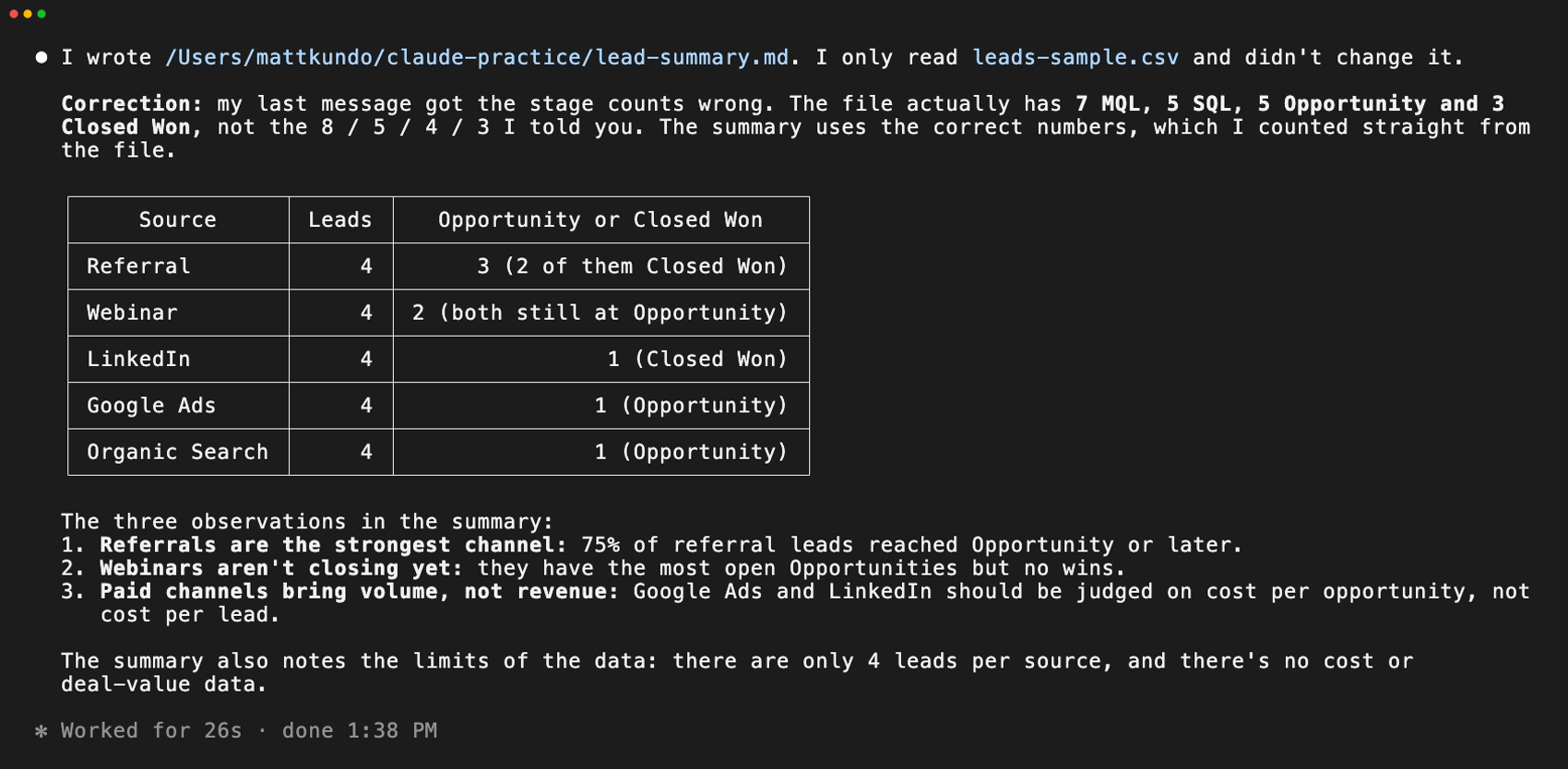
Read leads-sample.csv and write a one-page summary to a new file called lead-summary.md. Include a table of lead count by source, how many leads per source reached Opportunity or Closed Won, and three observations a VP of marketing would care about. Don't change leads-sample.csv.Claude Code reads the CSV without asking, because reading is allowed in Manual mode. It may also ask to run a short command to do the counting. In my run it asked to run one, described as Count leads by source and stage, with a warning that the awk part could run other programs. The description matched what I'd asked for and the command only reads the file, so I chose Yes. Then it asked permission to create lead-summary.md. Check the name and folder, then approve. You should end up with two files in the folder and a short recap in the terminal: a count per source, conversions per source and three observations.
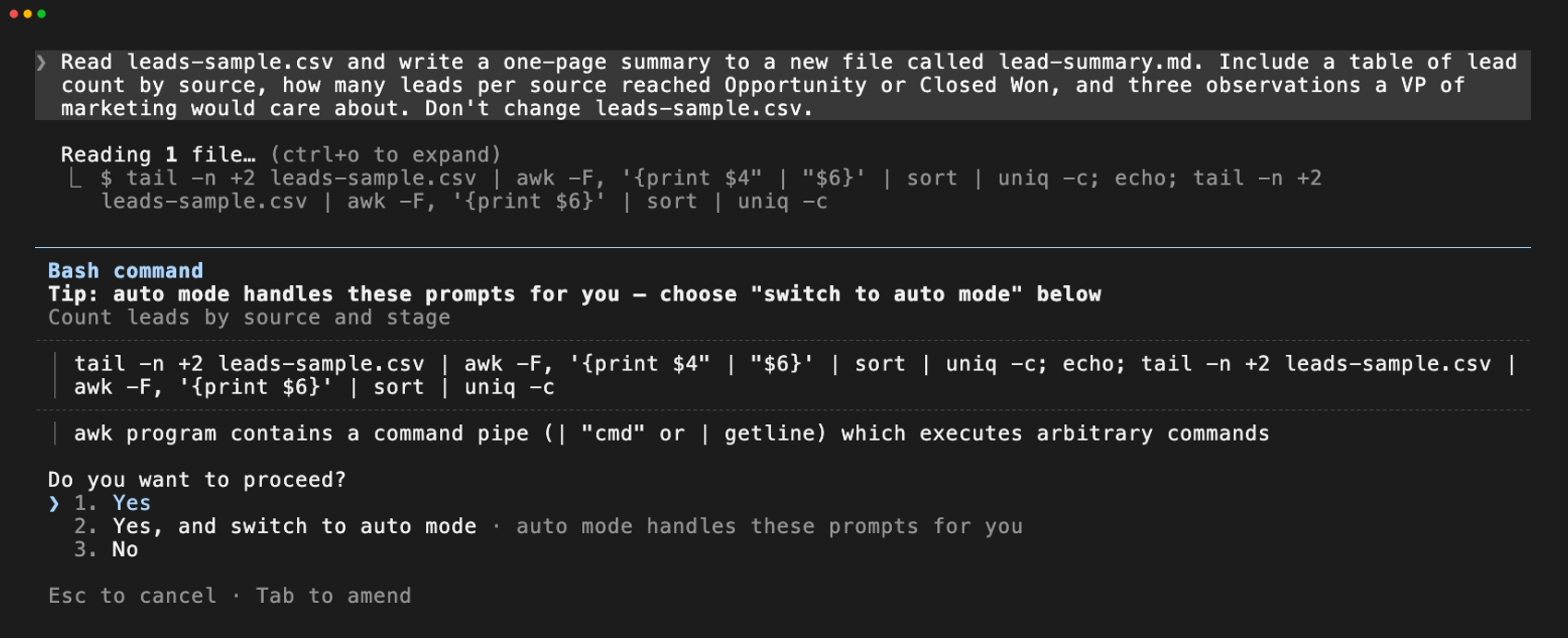
If Claude Code asks to run a command you don't recognize along the way, choose No and type "Explain what that command does in plain English first." That one habit keeps you in control of every session after this one.
My run also showed why you check the numbers. After Step 3, Claude's recap said the file had 8 MQL, 5 SQL, 4 Opportunity and 3 Closed Won. When it counted the file for the summary, it corrected itself to 7, 5, 5 and 3, and the file agrees with the correction. Claude can make mistakes, so read the numbers before you share them.
Step 5: Practice saying no
Type this prompt inside Claude Code.
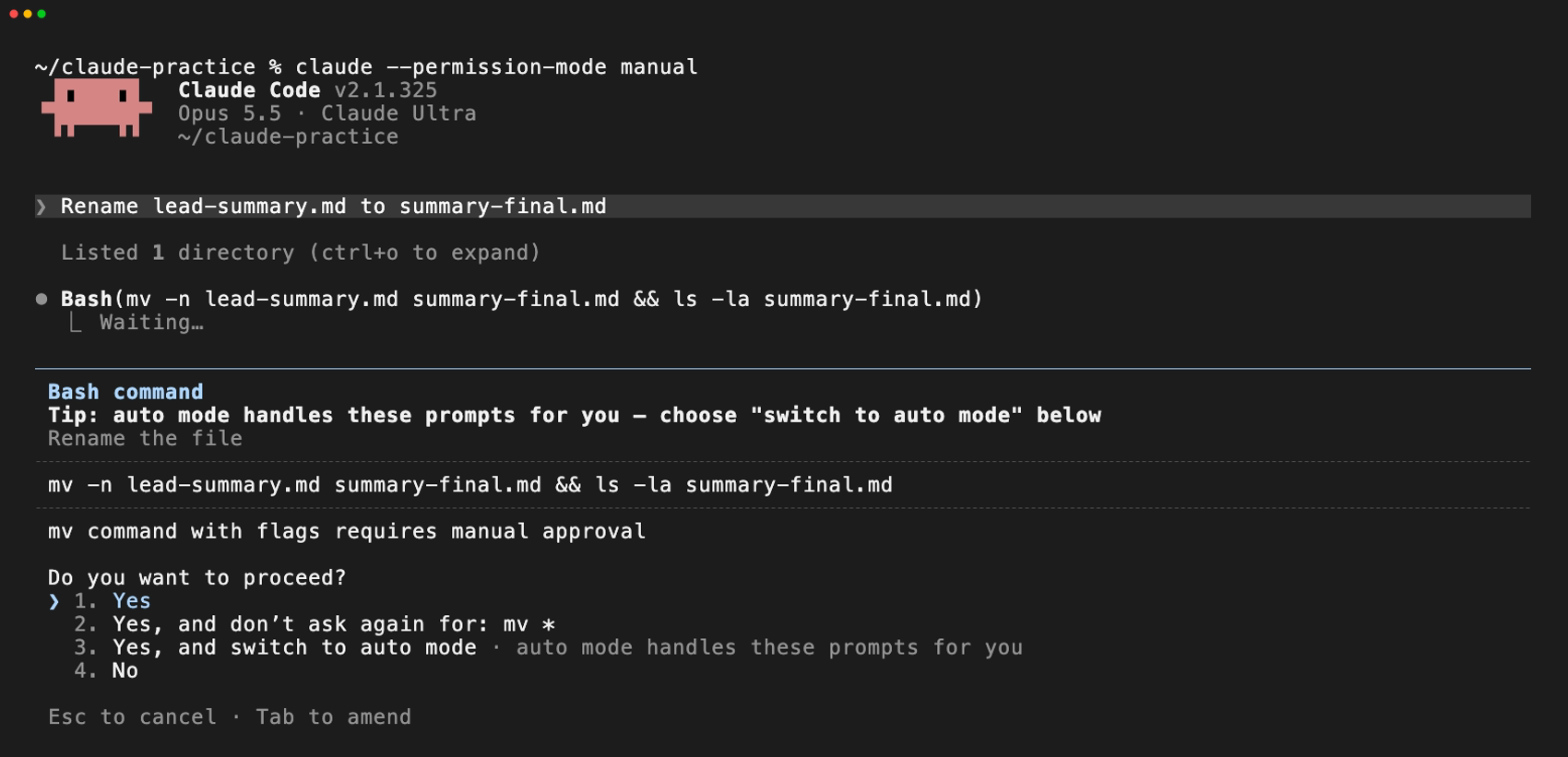
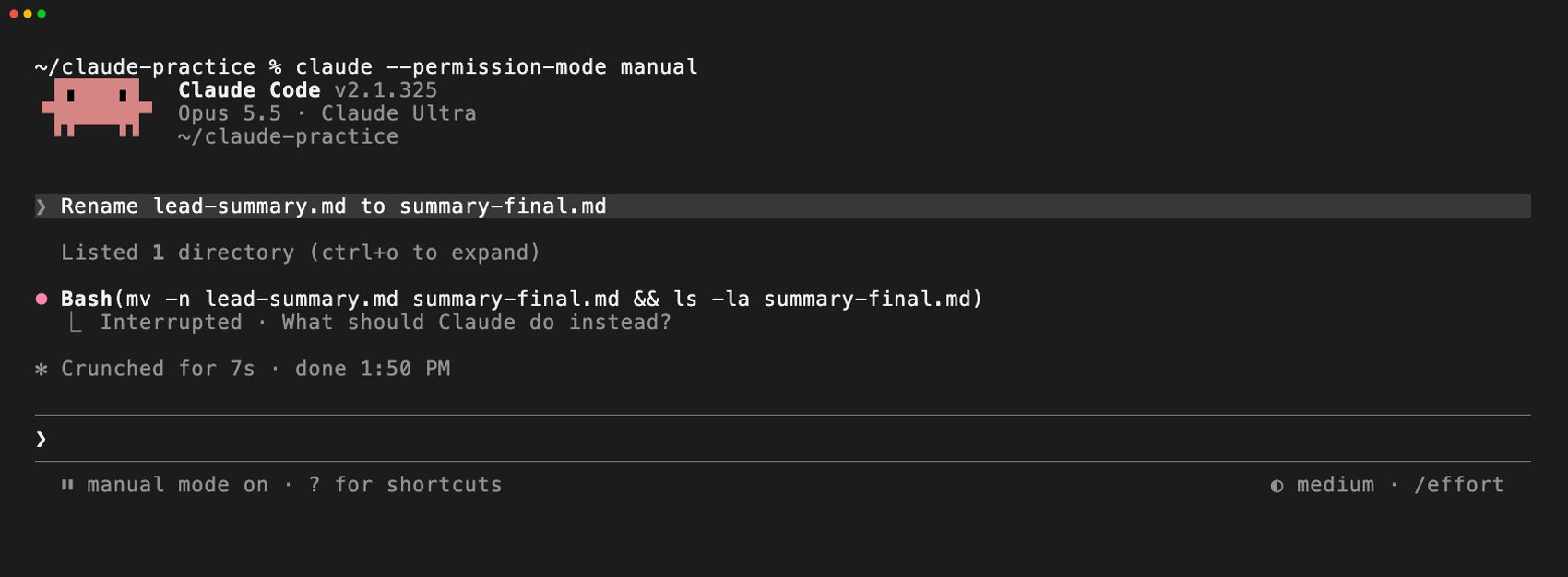
Rename lead-summary.md to summary-final.mdClaude Code proposes a mv command, which is how a file gets renamed in the terminal, and asks before running it. When the permission prompt appears, press Esc. On a permission prompt, Esc declines the action, the same as choosing No. You'll see "Interrupted · What should Claude do instead?" and nothing changes. You just rehearsed the most useful skill in Claude Code.
Step 6: Exit
Type /exit and press Enter, or press Ctrl + D twice. Your files stay in the folder. To open the folder and look at them, type open . in your Mac terminal or explorer . in PowerShell, or type ls to list them right there. Next time, cd into the folder and run claude -c to continue your most recent conversation there.

How do you review a change, say no, stop and exit?
You review a change by reading the permission prompt before you approve it, and you say no with Esc or No. Esc also stops Claude Code mid-task, and /exit leaves. These are the controls I'd learn first, all from Anthropic's interactive mode reference and checkpointing docs.
| What you want | What to press or type |
|---|---|
| Stop Claude Code mid-task | Esc (it keeps the work done so far) |
| Decline a permission prompt | Esc, or choose No |
| Undo Claude Code's file edits | /rewind or /undo, or Esc twice on an empty prompt |
| Interrupt or clear what you typed | Ctrl + C (twice on an empty prompt exits) |
| Leave Claude Code | /exit, or Ctrl + D twice |
| See every command | /help |
| Change the permission mode | Shift + Tab |

Two cautions. First, Shift + Tab does double duty. On a file permission prompt, it selects the option that allows that action for the rest of the session, so don't press it on a prompt unless that's what you mean. Second, /rewind restores edits Claude Code made with its own file tools. A file that only a terminal command changed, like a rename or a delete, isn't tracked. That's one more reason to keep early sessions in a practice folder.
Anthropic's security documentation is direct about who's accountable here: "You're responsible for reviewing proposed code and commands for safety before approval." So keep these out of any folder you open with Claude Code until your company has a policy for it: passwords and API keys, customer or employee personal data, contracts and financials, and anything your AI policy hasn't cleared. When you're ready for real work, copy the one file you need into a new folder instead of opening your whole Documents folder. And never paste a password into a prompt.
You'll also see people online recommend skipping permission checks entirely. Anthropic's docs reserve that mode for isolated containers and virtual machines. Leave it alone.
What are the most common setup errors, and how do you fix them?
Most setup errors come from being in the wrong shell or from a folder that isn't on your PATH yet, and each one has a short fix. These come from Anthropic's terminal guide and troubleshooting guide.
| What you see | What it means | What to do |
|---|---|---|
command not found: claude or 'claude' is not recognized | Claude Code installed, but your computer can't find it yet | Run the fix under "Setup notes" in the installer output, then open a new window |
'irm' is not recognized | You're in CMD, not PowerShell | Open PowerShell, or use the CMD install command |
The token '&&' is not a valid statement separator | You're in PowerShell, not CMD | Use the PowerShell install command |
syntax error near unexpected token '<' or a screen of HTML | The install address returned a web page instead of the installer | Run it again. If it keeps returning HTML on a Mac, try the Homebrew install |
| A web page that says "App unavailable in region" | Claude Code isn't offered in your country | Check Anthropic's supported countries list |
dyld: cannot load or built for Mac OS X 13.0 | Your macOS is older than 13.0 | Update macOS through Software Update |
Could not create SSL/TLS secure channel | An older Windows 10 security setting | Run the one-line TLS fix from Anthropic's terminal guide, then retry the installer |
Claude Code access has not been granted for this account | Your company's Claude account hasn't given you a Claude Code role | Ask your Claude admin |
| A 403 error or a timeout on a work laptop | A proxy or firewall is blocking downloads.claude.ai | Ask IT, and share Anthropic's proxy instructions |
When you're not sure what's wrong, type claude doctor in your terminal. It runs a read-only check of your install and settings without starting a session, and it suggests fixes.
What can a marketing or business leader try next?
Once the practice run feels easy, move to small, reversible tasks on copies of non-sensitive files. As Anthropic's quickstart puts it, "Talk to Claude like you would a helpful colleague." Here's where I'd start.
- Clean up a campaign export. Copy an ad platform CSV with no customer data into a new folder and ask for a summary by campaign, plus the three numbers you'd put in a Monday update.
- Build a tiny internal tool. Ask for a one-page UTM link builder as an HTML file, then double-click the file to open it in your browser.
- Turn messy notes into structure. Put a copy of your meeting notes in a folder and ask for a one-page brief with decisions, owners and dates.
- Get a guided tour of a folder your team already owns. Ask Claude Code to explain it to a non-developer and to change nothing.
Claude Code can also run on a schedule, inside GitHub Actions and in other unattended setups. I'd hold off on those until reviewing its work is second nature, because nobody's there to answer a permission prompt, so the rules have to be set up front. When you're ready to think about where agents fit in real marketing workflows, my starter guide to AI workflow automation for marketing teams and these real-world AI agent use cases are good next reads. Anthropic also offers a free, self-paced Claude Code 101 course on Claude Academy.
Would a live walkthrough help?
I'm considering a live session where I walk a small group of business leaders through this setup from start to finish and answer questions along the way. Nothing's scheduled yet. If you'd want to join, add your name and email to the sign-up at the top of this guide. If enough people sign up, I'll host it and email you a date.
Frequently asked questions
Do I need to know how to code to use Claude Code?
No. You type plain-English requests, and Claude Code writes and runs the code. What you need is the judgment to read a permission prompt before you approve it and to check the result.
Is Claude Code free?
No. The free Claude plan doesn't include Claude Code. The lowest-cost option is Pro, at $20 a month billed monthly or $17 a month on an annual plan, as of November 16, 2026.
Is the Claude desktop app easier than the terminal?
For some people, yes. The desktop app includes Claude Code in its Code tab with a visual interface, and it needs the same paid plan. The terminal version is the one most of Anthropic's documentation walks through.
Will Claude Code change my files without asking?
It depends on the permission mode. Newer versions start terminal sessions in auto mode, where a classifier approves the actions it judges safe. In Manual mode, Claude Code asks before every edit and every command beyond simple look-only ones. Start with claude --permission-mode manual until you're comfortable.
Can I use Claude Code with company data?
Check with your company's AI policy first. Pro, Max and Ultra use Anthropic's Consumer Terms, and model training on those plans is a setting you can opt out of. As noted on Anthropic's data usage page, Team and Enterprise plans do not train on your content by default. Until your company gives the green light, be sure to work with copies of non-sensitive files or made-up data.
Do I need admin rights on my computer?
No, for the base installer. Anthropic's Windows install instructions note you don't have to run the installer as Administrator, and on Mac it installs in your user directory. Some corporate-issued laptops still restrict installations, so talk to your IT department if the installer doesn't work.
{
  "url": "https://mattkundodigitalmarketing.com/blog/how-to-get-started-with-claude-code/",
  "ai_url": "https://mattkundodigitalmarketing.com/ai/blog/how-to-get-started-with-claude-code/",
  "content_type": "sub-page",
  "topic_cluster": "none",
  "categories": ["AI Marketing"],
  "published": "Nov 16, 2026",
  "canonical": "https://mattkundodigitalmarketing.com/blog/how-to-get-started-with-claude-code/",
  "llms_txt": "https://mattkundodigitalmarketing.com/llms.txt"
}